
Resources · In-state tuition
7. Create a Logo
Time to get creative! Designing a distinctive logo through AI not only streamlines the branding process but also underscores the professionalism of your business to potential customers
Please Note: Feel free to employ any digital software of your choice for logo design, in addition to the recommendation provided below. The specific software you opt for is entirely up to you and will not impact the outcome.
Step-by-Step Guide
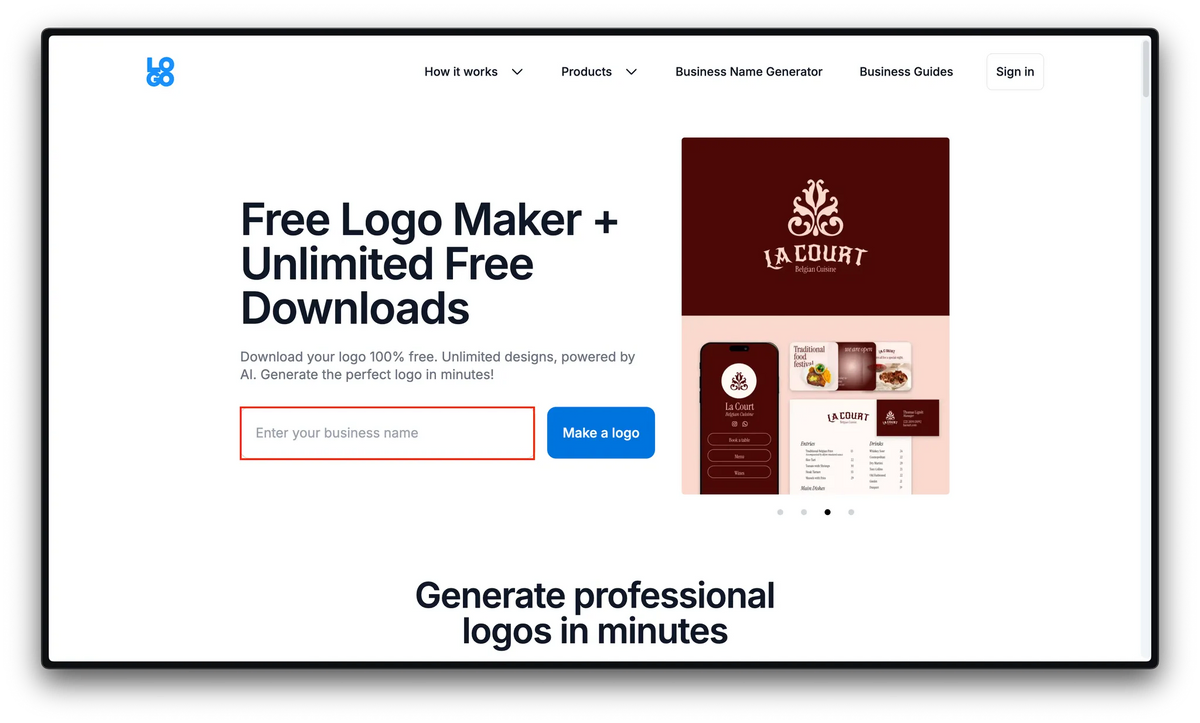
Navigate to logo.com
Type your company name
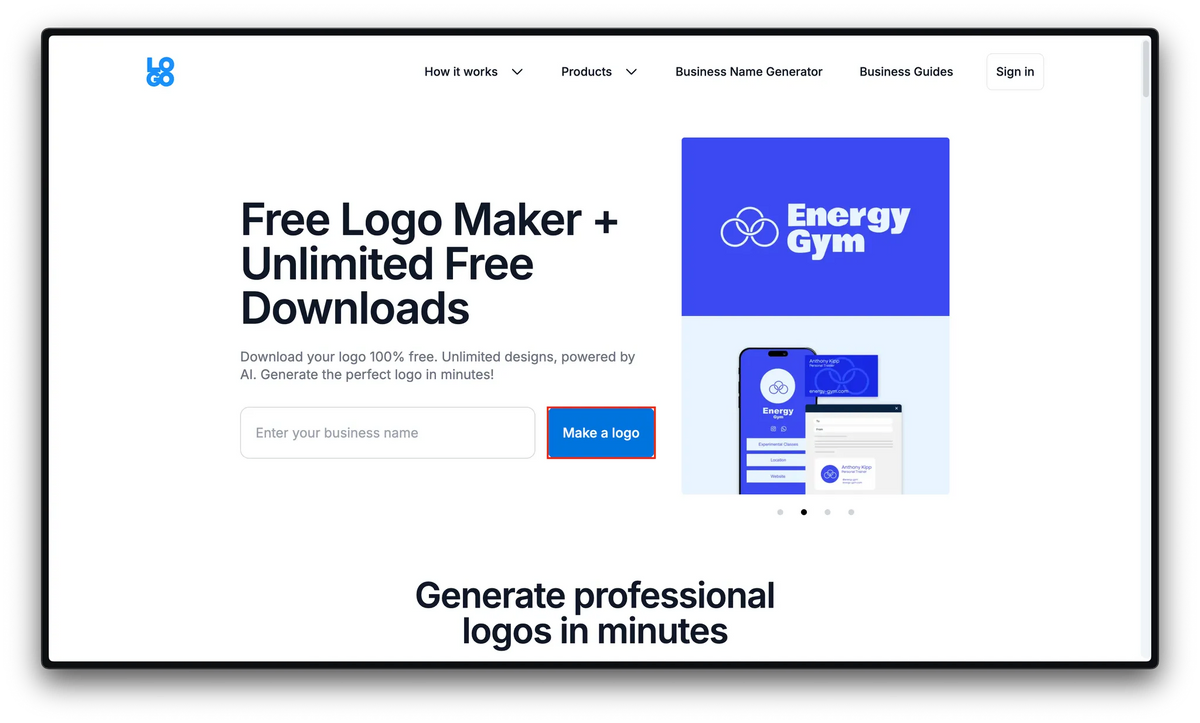
Click "Make a Logo"
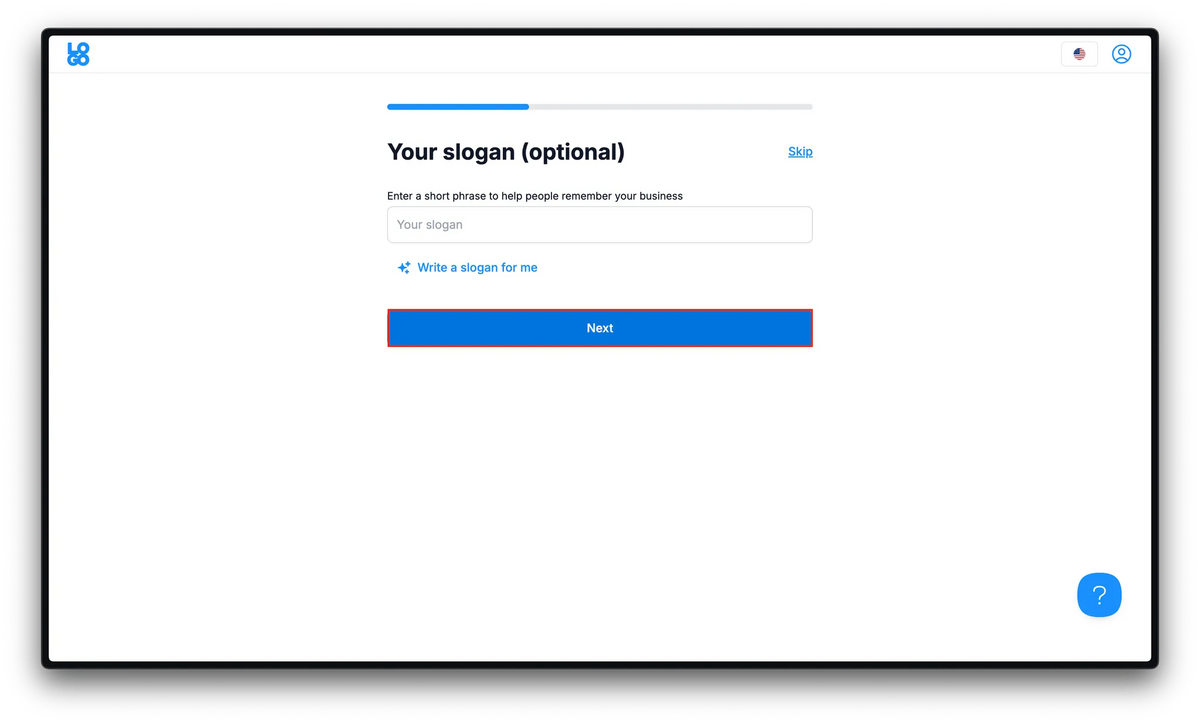
Type your company slogan if applicable
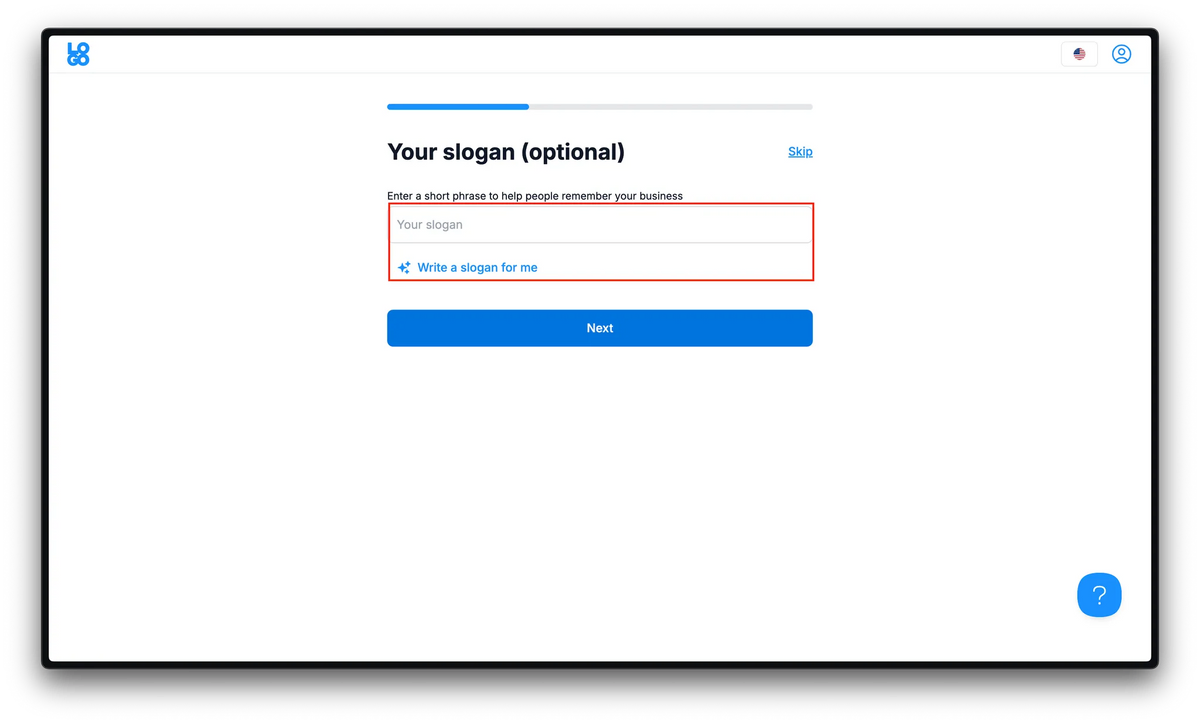
Click "Next"
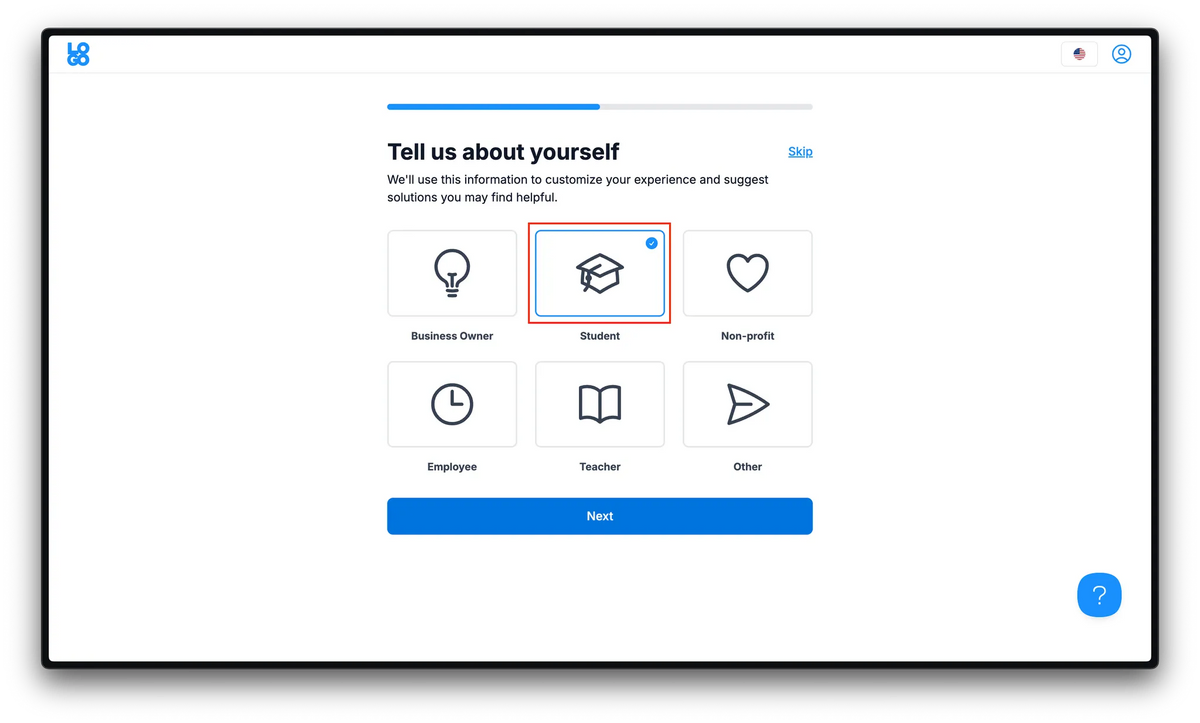
Select which describes your business
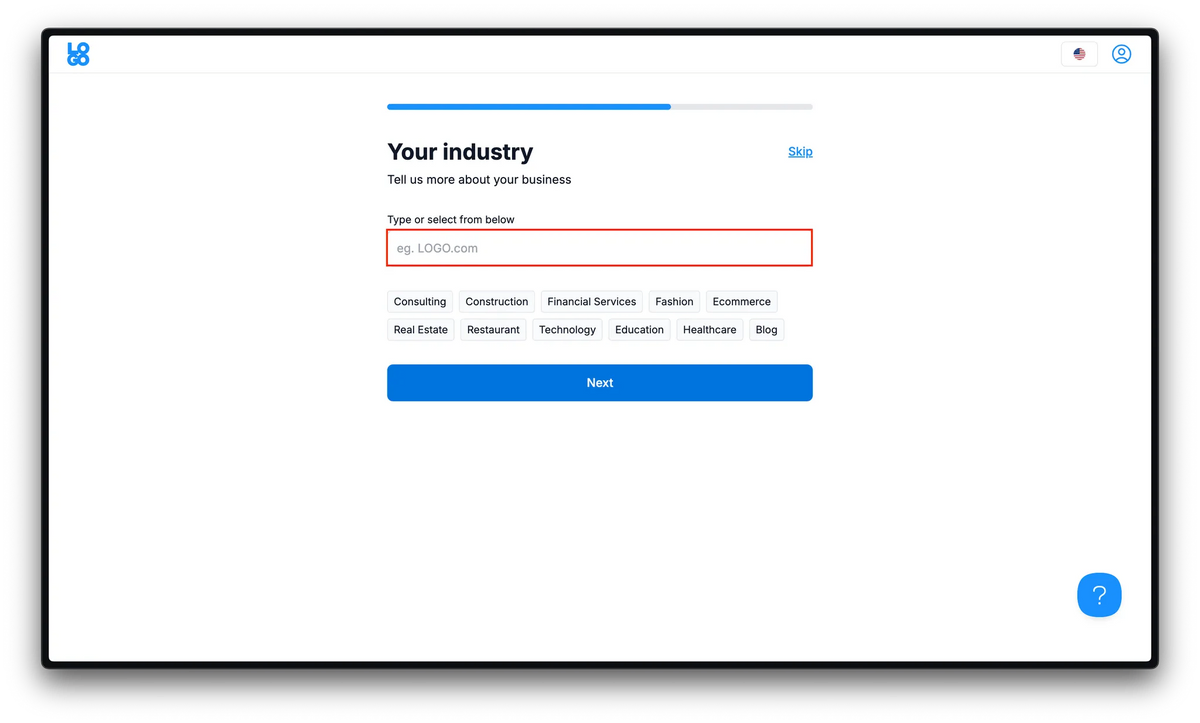
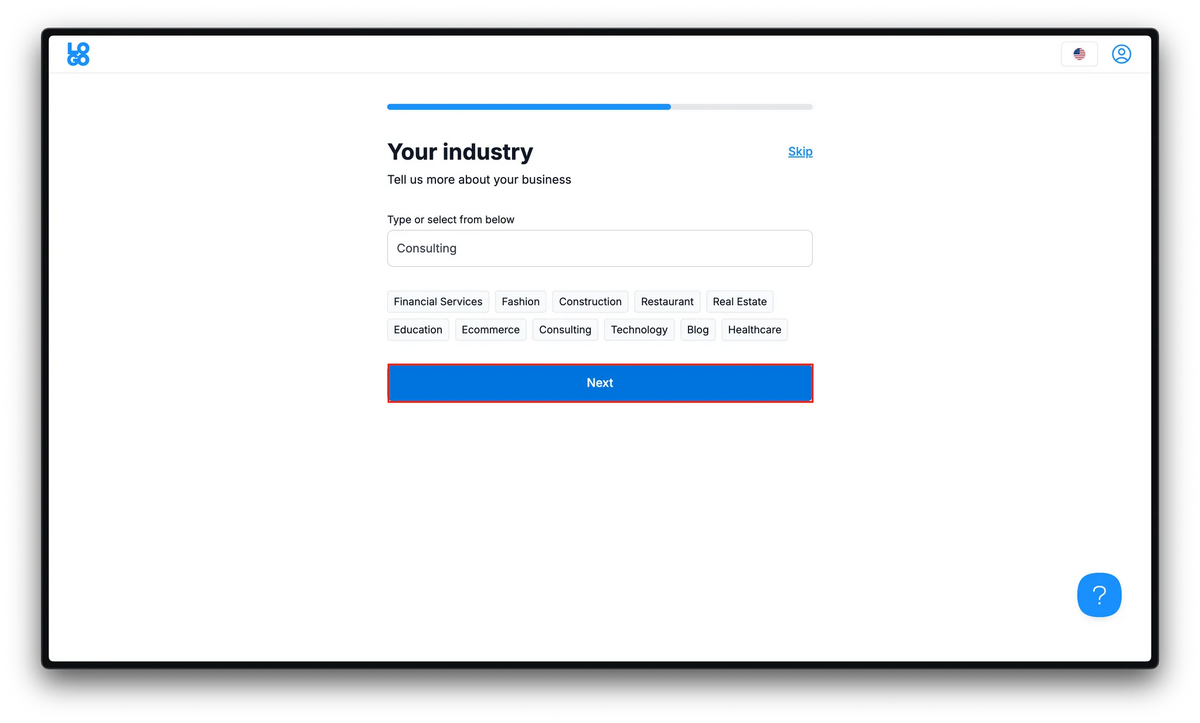
Type your industry
Click "Next"
Enter your keywords
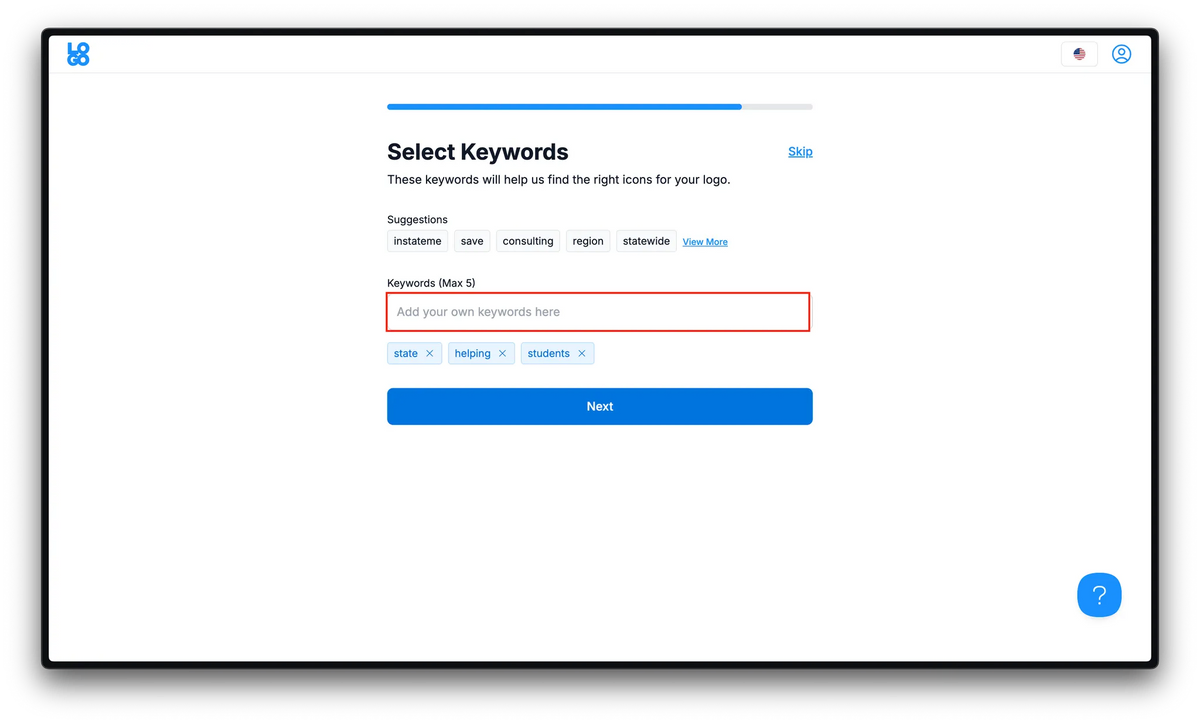
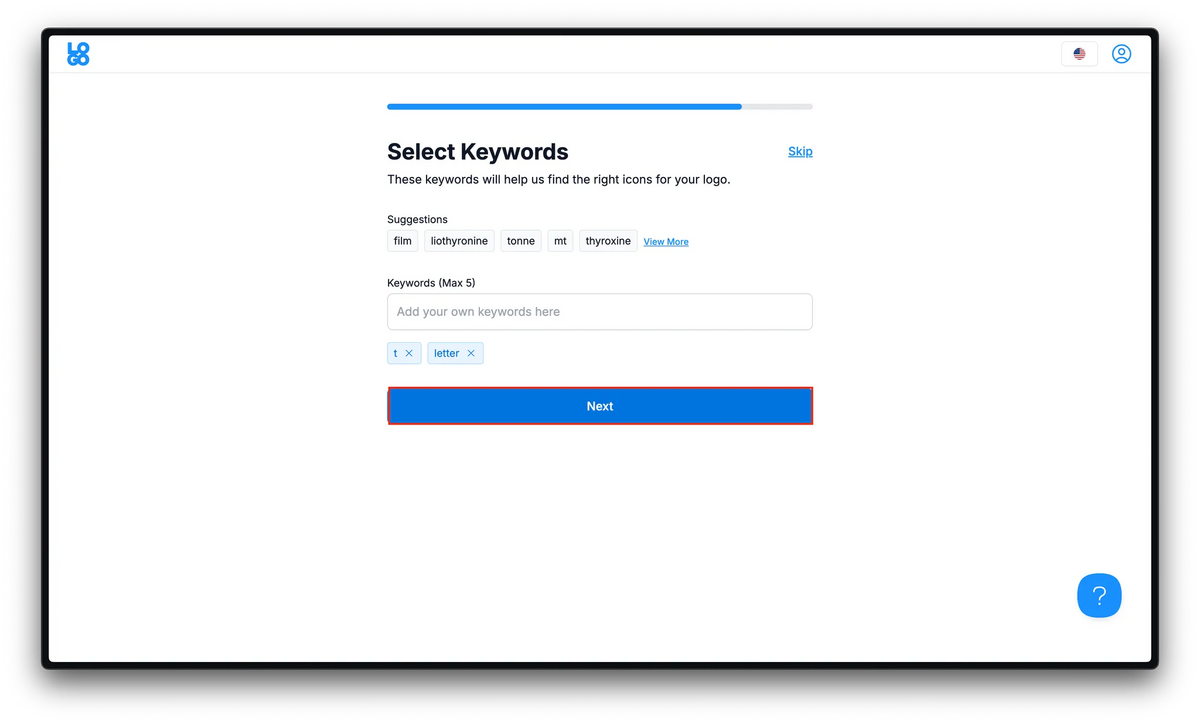
Click "Next"
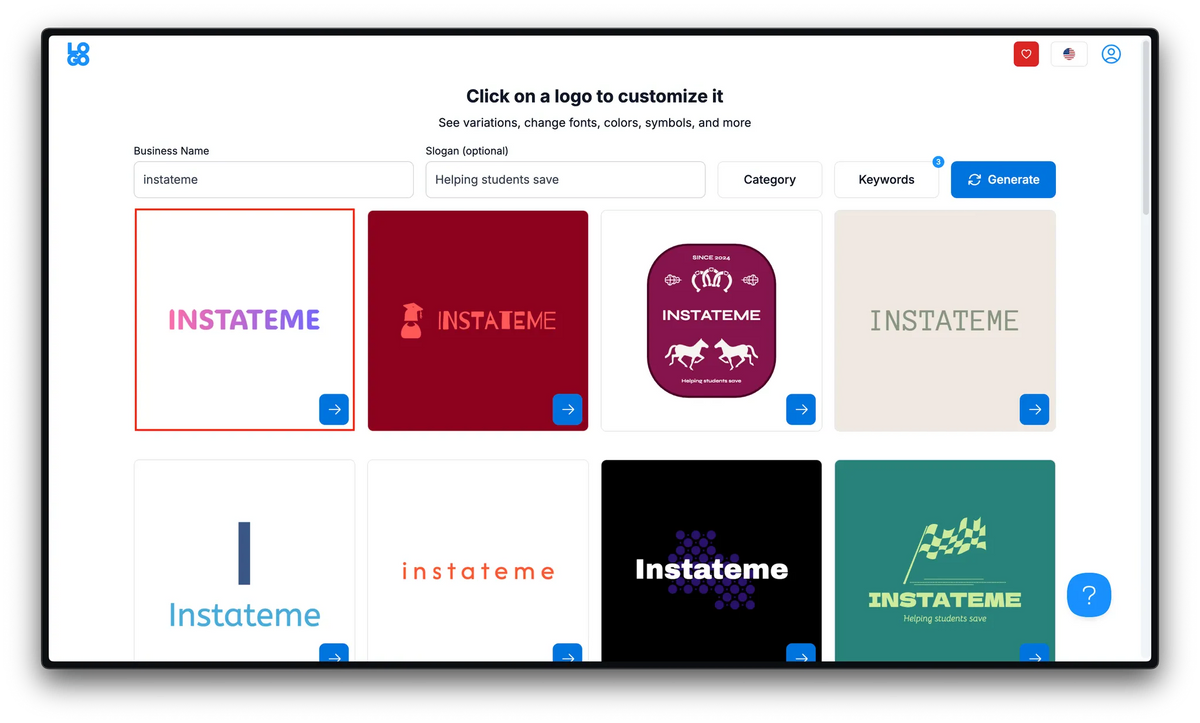
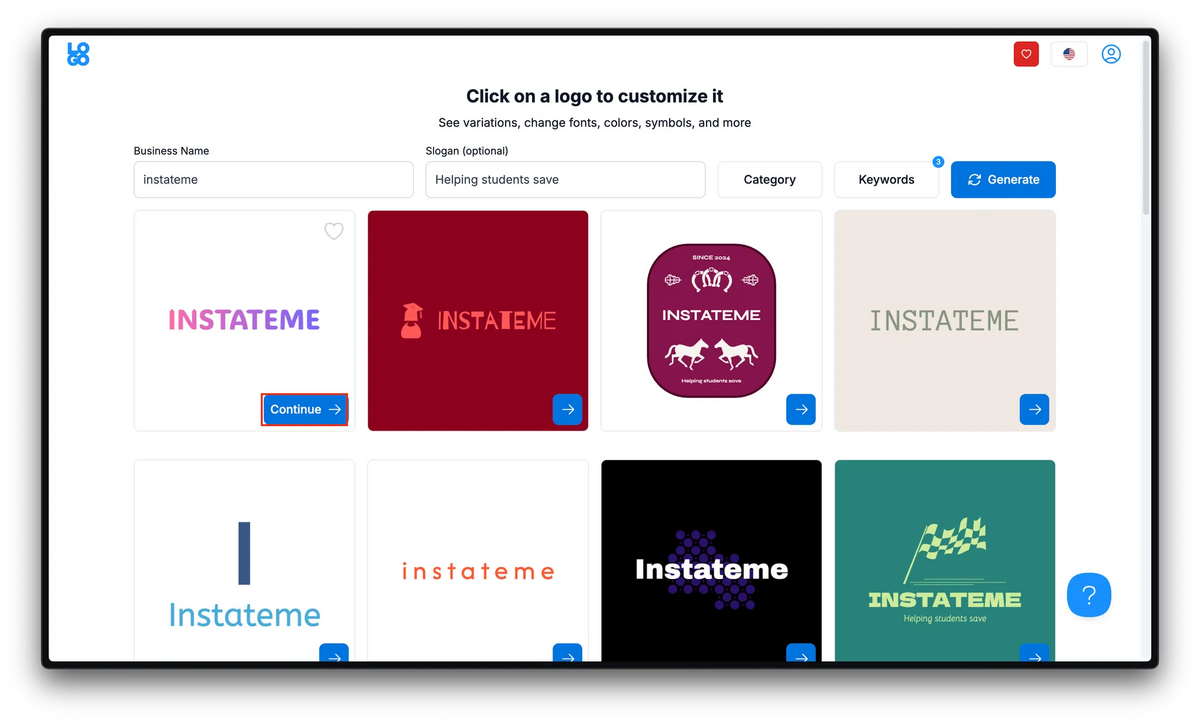
Hover over a logo you like
Click "Continue"
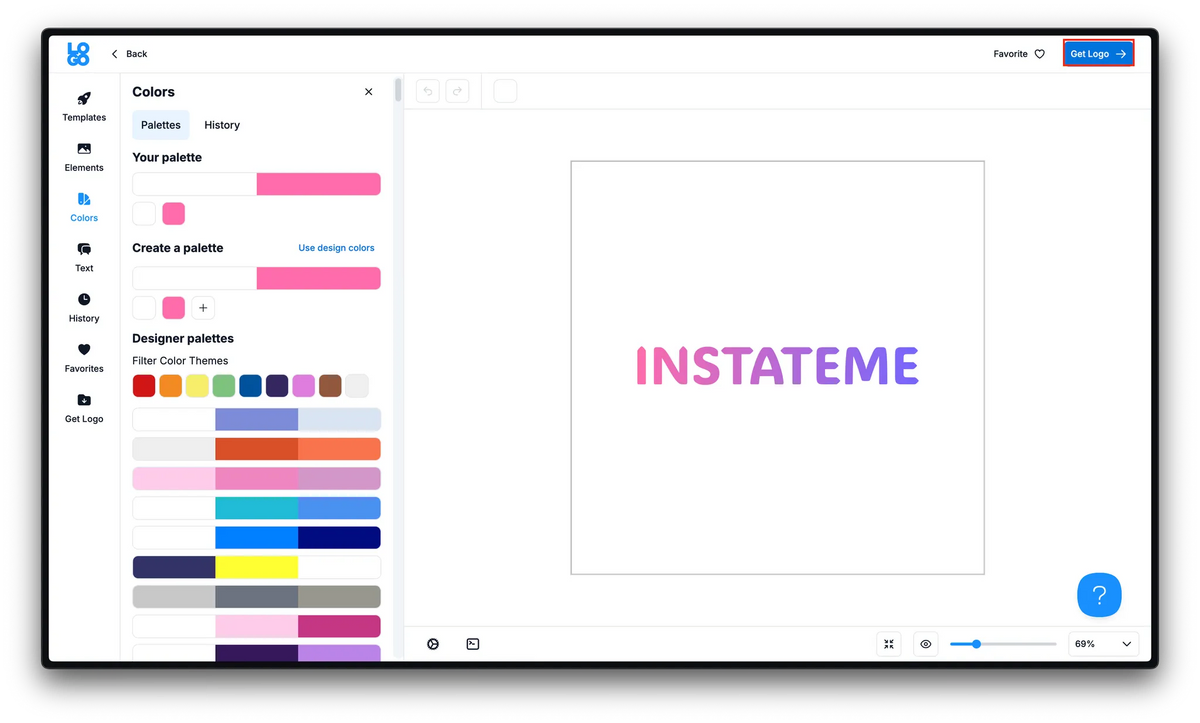
Click "Get Logo"
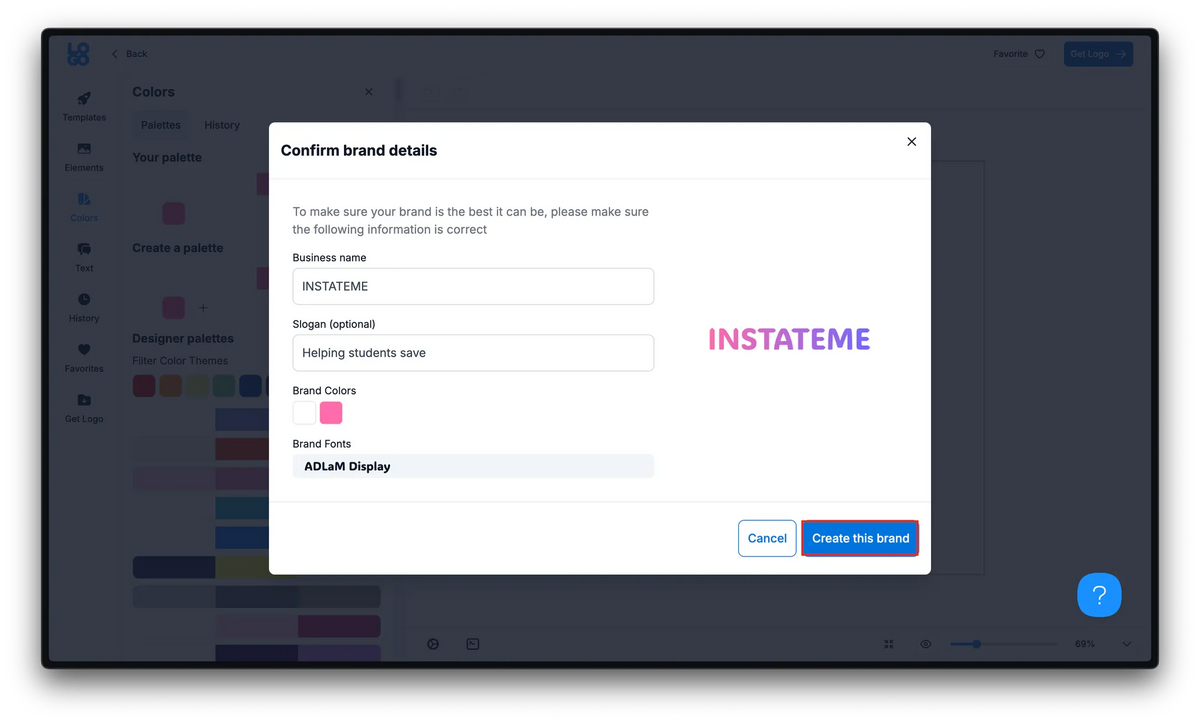
Click "Create this Brand"
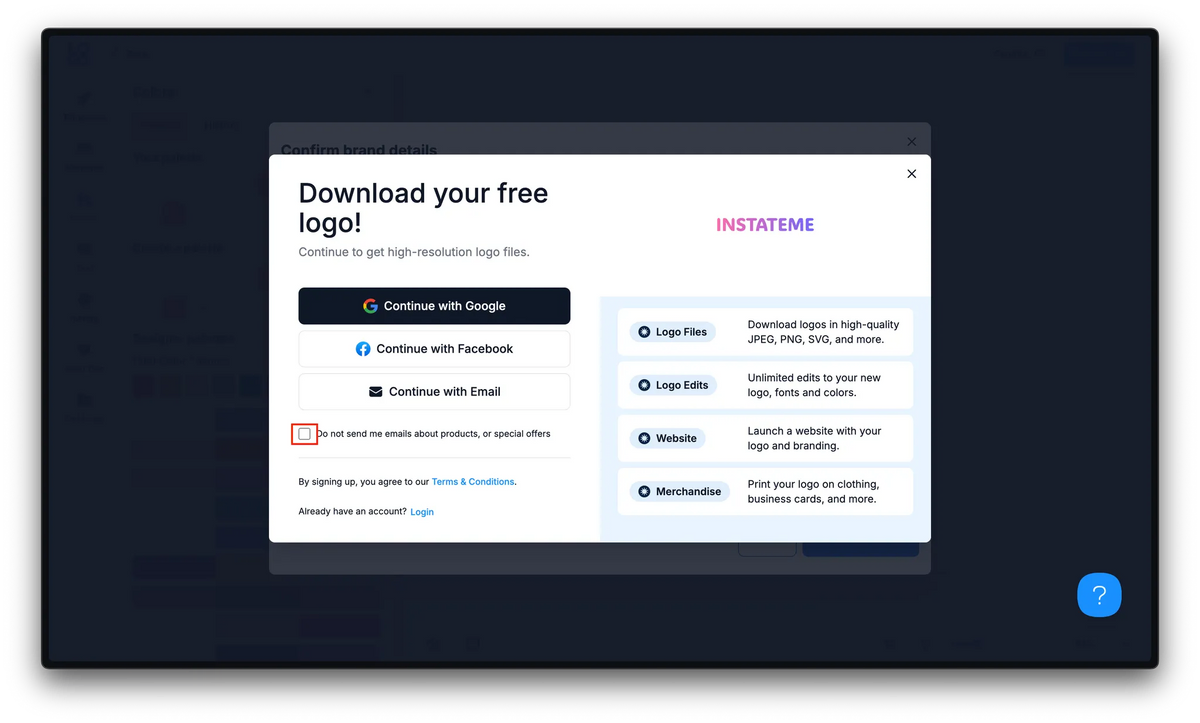
Check "Do not send me emails"
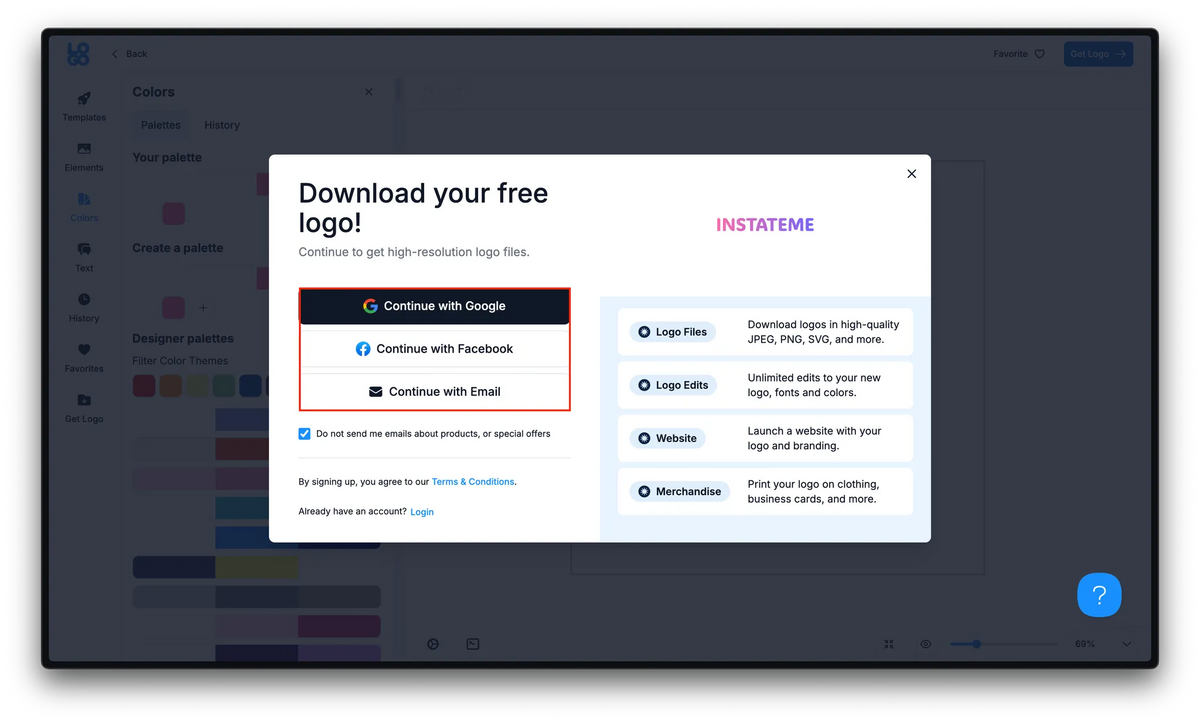
Create an account
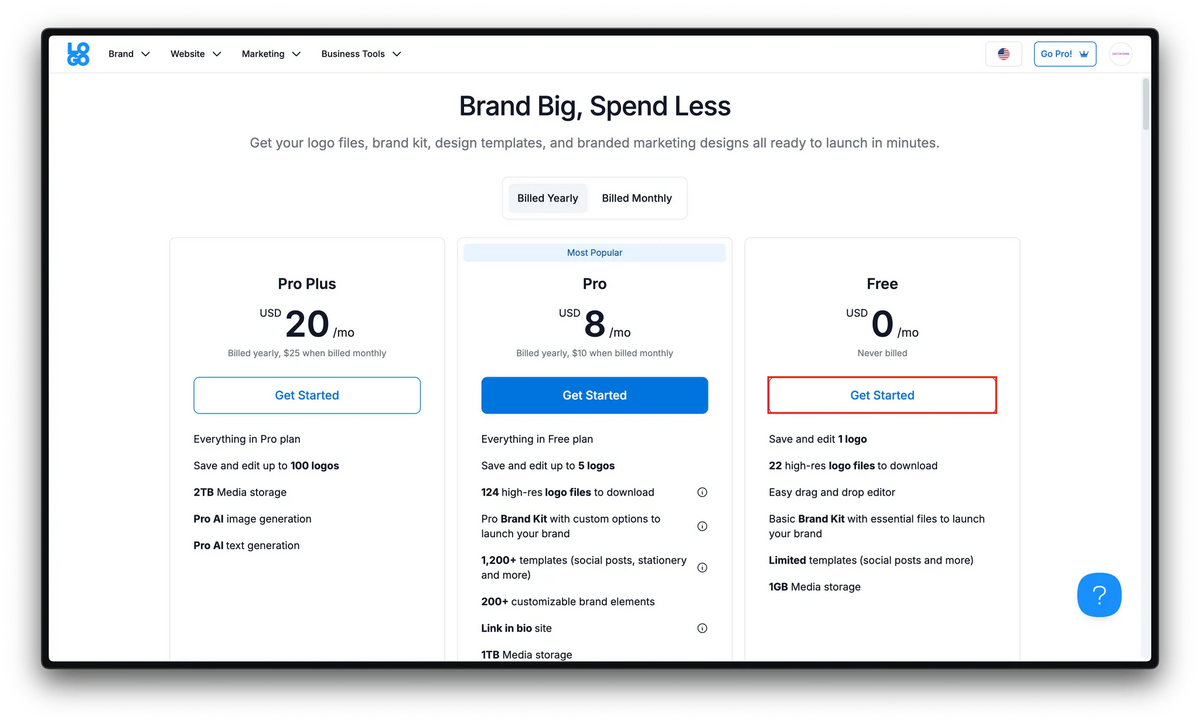
Click "Get Started" under "Free"
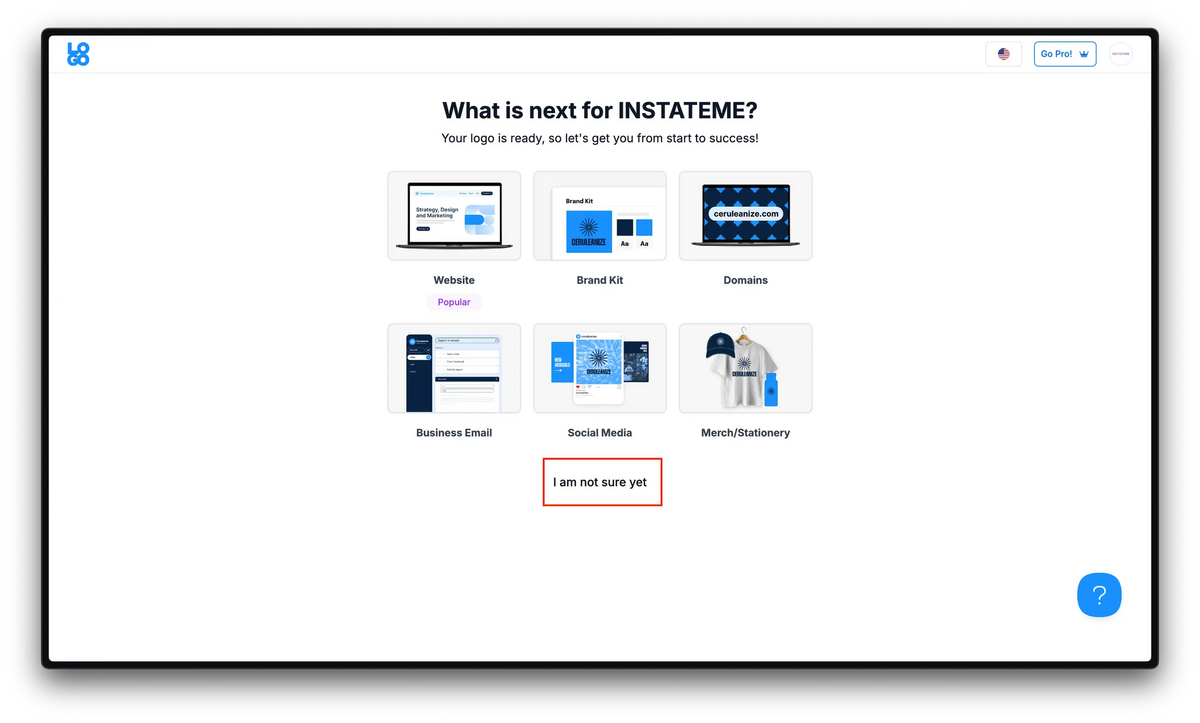
Click "I am not sure yet"
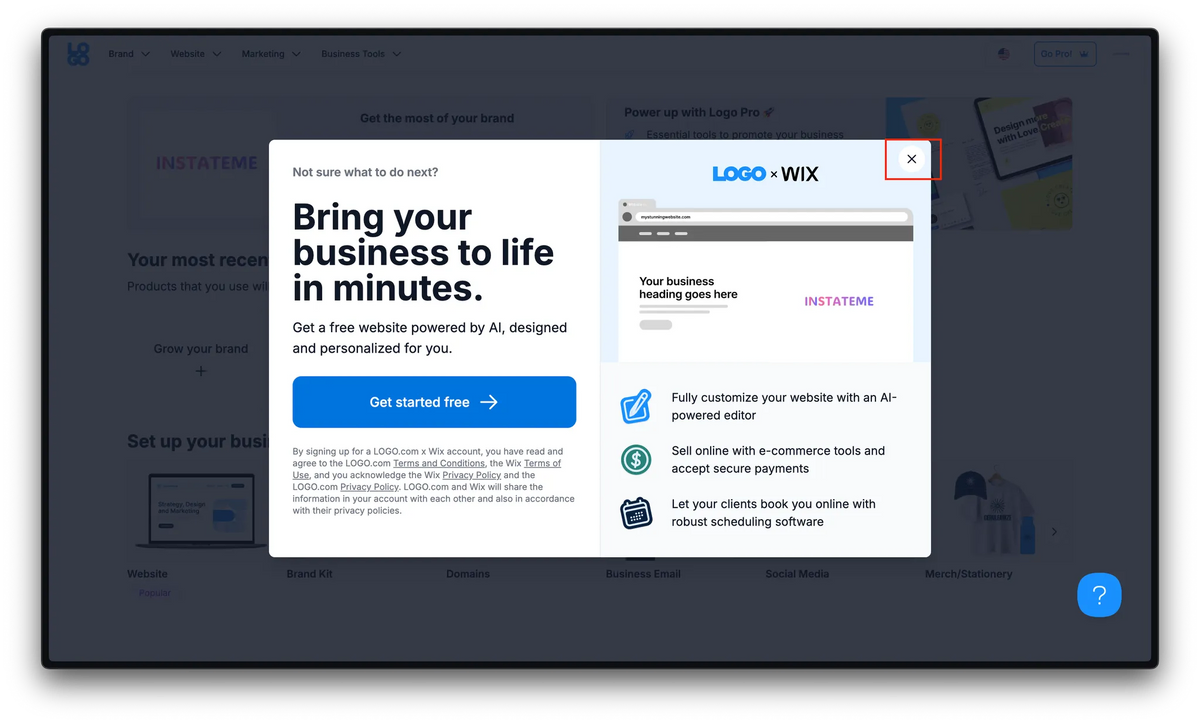
Click the close symbol
Click "Download"
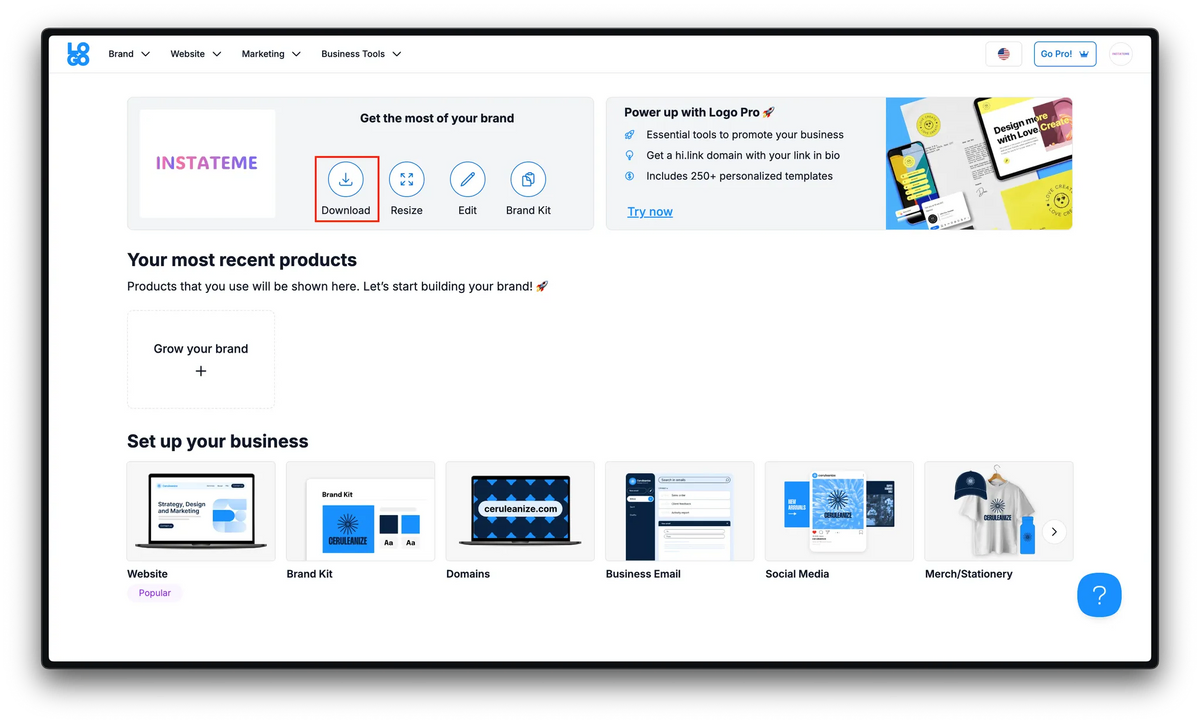
Click "Download"
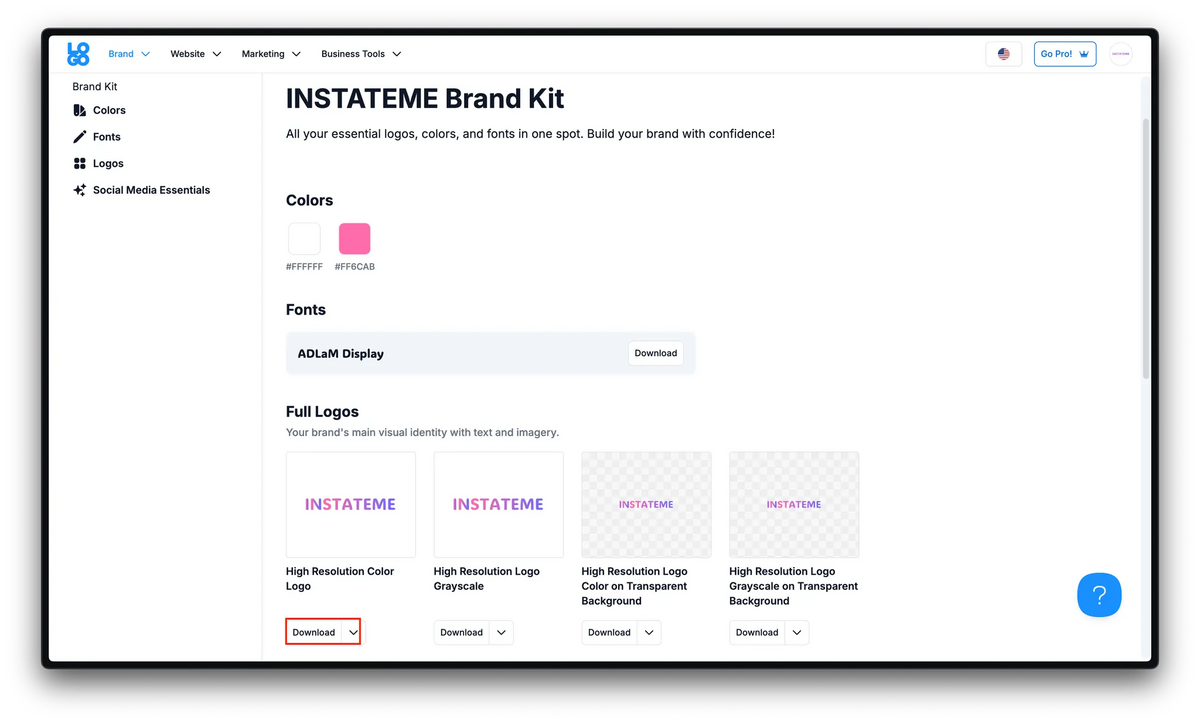
Upload a PDF of your logo into your InstateMe portal
Update Checklist "Status" column accordingly